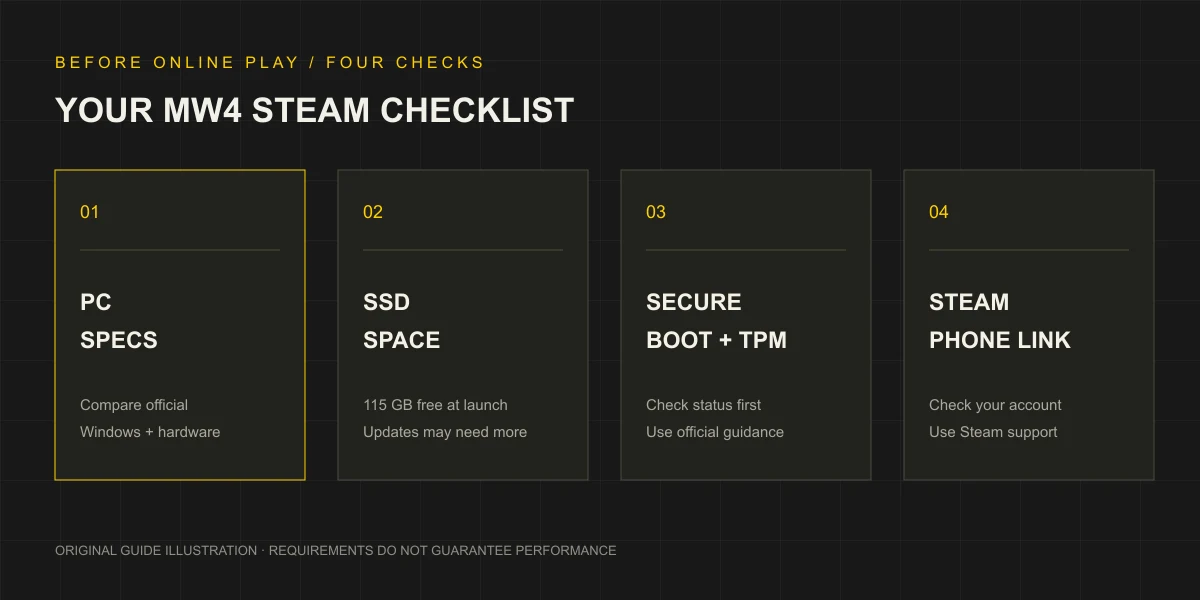
What the Steam Warning Means
A MW4 Secure Boot warning calls for a security-configuration check. It is separate from an out-of-space message, a phone-number prompt or a crash with no explanation. If your symptom is different, start with troubleshooting by symptom rather than assuming firmware is the cause.
Steam may display “Secure Boot & TPM 2.0 Not Detected.” Its warning concerns one or both settings appearing disabled. Activision’s MW4-specific support statement says users without the required configuration are restricted from online modes. Those are related statements with different scope; neither identifies the cause of every crash. Steam listing and Activision security support.
Before changing anything, save the exact message and check the current Windows state. This gives you something specific to compare after following the appropriate official guidance.
Check TPM in Windows First
This check reads the current TPM information:
- Press Windows + R to open Run.
- Enter tpm.msc and press Enter.
- Read the Status field.
- Under the TPM information, check Specification Version. The required version is 2.0.
A ready status and the version answer different questions, so check both. If Windows cannot find a compatible TPM, that does not by itself prove the computer has no supported TPM; the relevant feature may be disabled. Microsoft’s TPM checking and enabling guide.
Record what Windows shows. Do not clear the TPM as a substitute for reading the status. Clearing a security component is a different operation from checking whether it is available and enabled.
Check Secure Boot and Boot Mode
Open Run again with Windows + R, enter msinfo32 and read these fields in System Information:
| Windows field | Configuration Activision asks for | What to do with a different result |
|---|---|---|
| BIOS Mode | UEFI | Record Legacy or any other result before considering firmware changes |
| Secure Boot State | On | Record Off or Unsupported and consult the relevant hardware guidance |
These are read-only checks. Do not switch boot mode simply because a guide for a different machine uses a particular menu. If the result mentions Legacy or an unsupported state, identify your PC or motherboard model first and read the matching documentation.
It is useful to keep the Windows result, Steam message and any later tool result together. If they differ, that difference is evidence for a support request, rather than a reason to try several unrelated settings at once.
Use the Official Secure Attestation Wizard
Open Activision’s current security support page and follow its Secure Attestation Wizard link. Obtain the download there so you can check the publisher’s current version and instructions. Extract the downloaded archive, open the official executable and follow the displayed terms and scan steps.
Keep the exact result. A reported failed check gives you a more precise next step than a general “not detected” message. Work through the condition the official tool identifies, and use the instructions linked by Activision for that condition. Do not treat the scan as a benchmark or a guarantee that unrelated game problems are resolved.
Find the Guide for Your PC or Motherboard
Match the device family and model before using a firmware guide. These are official starting points, not a single sequence that applies to every product from the brand:
| Hardware | Official starting point | Scope to check |
|---|---|---|
| ASUS | Secure Boot support guide | Choose the section matching the device and firmware interface |
| ASRock | Secure Boot FAQ | Check the motherboard documentation and platform notes |
| GIGABYTE | TPM and Secure Boot FAQ | The linked guide identifies supported AM4 and sTRX4 families |
| MSI | AM4 motherboard guide | Do not assume AM4 instructions apply to a different platform |
| Other PCs or boards | Activision’s manufacturer guide directory | Select the matching vendor, then the actual product |
Read the manufacturer’s preparation instructions before a change. For example, ASUS notes that firmware changes can lead to a recovery-key prompt on encrypted drives. If a guide does not match your model, stop and use the manufacturer’s support for that product.
After following the correct official procedure, return to Windows and repeat the same checks. If the machine does not boot normally, use its manufacturer’s recovery instructions rather than applying more game fixes. For a remaining unrelated crash, return to the launch-problem index.
QUICK ANSWERS
Secure Boot & TPM: common questions
Does a Secure Boot warning mean MW4 cannot run in any mode?+
The game-specific Activision support statement restricts players without the requirements from any online game mode. It does not establish that every offline mode or the entire program is unable to launch.
How do I check TPM 2.0 without changing BIOS settings?+
Press Windows + R, enter tpm.msc and check both Status and Specification Version. Version 2.0 is the relevant version. A missing compatible TPM message can mean a disabled setting as well as a hardware limitation.
How do I check whether Secure Boot is on?+
Open Windows Run with Windows + R, enter msinfo32 and read BIOS Mode and Secure Boot State in System Information. Activision lists UEFI mode and Secure Boot On as the required configuration.
What if Windows says the settings are on but the warning remains?+
Use the current Secure Attestation Wizard linked from Activision Support and record its result. Follow the official guidance for the reported condition and your exact hardware, rather than repeatedly changing unrelated BIOS settings.
EVIDENCE & UPDATES
Sources behind this guide
Official information is separated from our editorial recommendations. Reviewed on October 23, 2026; updates may change the requirements or terms.
- Modern Warfare 4 on Steam Official Steam purchase page. The listing was read again after an earlier age-gate response. Launch specifications were confirmed; USD and HKD prices remain unverified. The store displays prices for the visitor’s region.
- TPM 2.0 and Secure Boot for Call of Duty MW4 online-mode security requirements, read-only checks, Secure Attestation Wizard and manufacturer guidance. The page does not establish that every offline mode cannot launch.
- Enable TPM 2.0 on Your PC Microsoft guidance for checking TPM status and specification version with Windows Security or tpm.msc. A missing compatible TPM message can mean it is disabled; motherboard-specific changes need manufacturer guidance.